> For the complete documentation index, see [llms.txt](https://docs.cubilock.com/llms.txt). Markdown versions of documentation pages are available by appending `.md` to page URLs; this page is available as [Markdown](https://docs.cubilock.com/user-management/users/roles.md).
# Roles
The **Roles & Permissions** page lets administrators define and manage **what actions different kinds of users can perform** within your CubiLock workspace. With this system, you can assign roles that group permissions together so that users get access *only to the features and functions they need* — a core principle of Role‑Based Access Control (RBAC).
#### Navigation:
User Management → Roles
#### **What Are User Roles?**
User roles are named sets of permissions that determine:
* **What menus and screens a user can see**
* **What actions they can take** (e.g., view, create, edit, delete)
* **What data they can access**
Instead of assigning individual permissions to each user, roles let you bundle those permissions into reusable templates — making it easier to control access as your team grows.
#### **Built‑In & Custom Roles**
On this page you’ll see:
**Predefined Default Roles**
These are role templates that come with CubiLock — you can view them but not delete them:
* **Admin** — Full access to all features and settings in CubiLock.
* **Manager** — Can view all data and perform general actions (but may not manage user roles or global settings).
* **Marketing** — Can view most areas and data; useful for non‑administrative departments.
* **User** — Limited, read‑only access; suitable for teams that don’t need management permissions.
These roles serve as common templates so you can assign appropriate access quickly and consistently.
#### **Custom Roles**
You can also create **Custom Roles** to tailor permissions specifically to your organization’s structure or job functions. For example, you might define a “Support Technician” role that can manage devices but cannot change enterprise user settings.
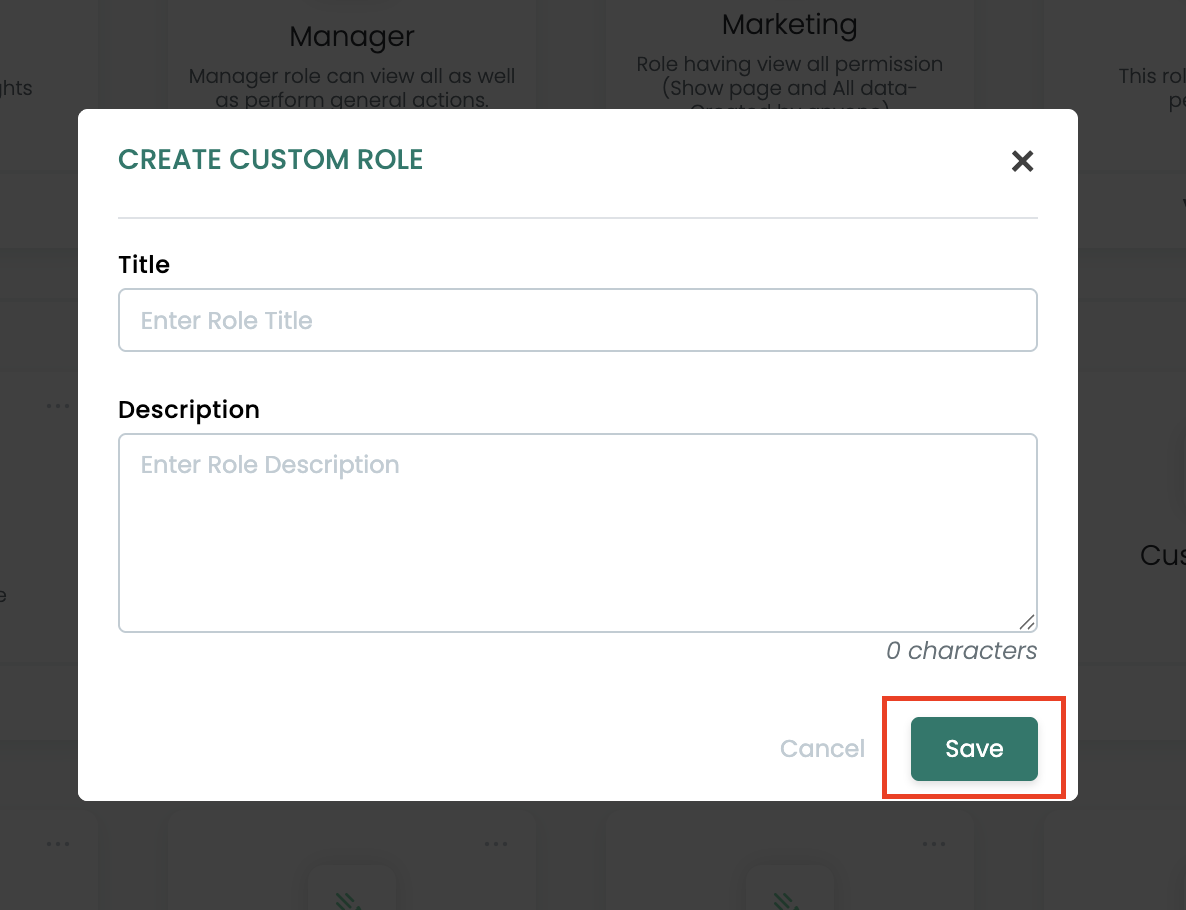
1. Click **Create Custom Role**.
2. In the modal that appears, enter:
* **Title** — A name for the role (e.g., “Helpdesk Support”).
* **Description** — Optional details about what this role is for.
3. Click **Save** to create the role.
After creation, you can **edit** the role to assign specific permissions — for example allowing view but not edit access to certain features.
#### **Viewing Role Permissions**
Click **View** on any role card to see the permissions included for that role. This typically includes:
* What screens the role can access
* Whether they can create, read, update, or delete objects
* Whether they can manage users, assign roles, or configure system settings
This readout helps you **audit and understand each role’s scope**, ensuring users don’t have excessive privileges.
#### **How Roles Work with Admin Users**
When you create or edit an **Admin User**, you assign them a role that dictates what they can do in the system. For example:
* A user with the **Admin** role has access to all functions.
* A user with a **Manager** role can view and manage devices and policies but may not manage other admin accounts.
* A user with a **User** role may have view‑only access.
This helps your organization **enforce least‑privilege access**, where users only have the permissions they need to do their job.
#### **Best Practices**
* **Use descriptive role names** that reflect the purpose of the role.
* **Start with default roles** and customize only if needed.
* **Avoid giving Admin privileges unless necessary.**
* Periodically **review role assignments** to ensure permissions stay up‑to‑date as responsibilities change.